Salesforce CSV preparation
Format Phone Numbers for a Salesforce CSV Import
Prepare a consistent phone column for a Salesforce CSV workflow, preserve review fields, and map the result according to your organization’s import configuration.
- Standardize a copied Phone or Mobile phone column before import
- Export a working CSV that keeps IDs and every source column
- Add cleaned phone, extension, status, and review-reason fields
- No Salesforce login, API connection, or direct record update
Salesforce update CSV preparation
Prepare a controlled Salesforce phone update
Standard Salesforce Phone fields do not universally require E.164. This browser-only tool does not connect to Salesforce.
Quick answer
Clean the phone field before you map the Salesforce import
Use PrimeDialPRO to prepare one phone column and download a working CSV that retains every source column. Record IDs, required fields, object selection, reviewed-row decisions, and the final Salesforce mapping stay in your hands.
Useful for
Phone, Mobile, or a custom phone field containing supported US and Canada list values in mixed formats.
Keep with it
The preview, copy action, and cleaned-row exports keep supplied Salesforce record IDs, required fields, and every non-phone source column beside the cleaned phone fields; PrimeDialPRO does not create missing fields.
Test first
Map a small CSV, review unmapped fields and errors, and confirm the phone format with your Salesforce administrator.
Practical workflow
Prepare a Salesforce phone field before import
Separate phone cleanup from record mapping: protect the source export, review the formatted values, then test the CSV inside Salesforce.
- 1
Protect the source export
Keep an untouched CSV and identify the Salesforce object, record IDs, and phone fields involved. For an update, preserve the identifiers required by your chosen Salesforce import method.
- 2
Prepare the phone column
Process only the intended phone field; only basic 10-digit or leading-1 NANP structure is checked. Review unsupported values and choose the format your Salesforce administrator or connected workflow expects. Keep extensions separate unless your configuration specifies otherwise.
- 3
Map and test the import
Download the working CSV, remove or correct review rows, map the cleaned phone and any extension field in Salesforce, and run a small test before updating the full dataset.
What the Salesforce phone-number formatter prepares
PrimeDialPRO can standardize a selected phone column into +1 E.164-style, national, dashed, dotted, compact, or digits-only output for 10-digit or leading-1 values that match basic NANP structure. This does not identify country or assignment. Working CSV preserves every source column and appends cleaned phone, extension, Ready or Review status, and review reason.
The working CSV is not a universal Salesforce import template. PrimeDialPRO does not choose an object, invent required fields, generate record identifiers, map fields, remove review rows, or know custom validation rules in your organization. Review it and explicitly map the appended cleaned-phone field to the intended Salesforce field.
- PrimeDialPRO does not connect to or authenticate with Salesforce.
- It does not determine whether Phone, Mobile, or a custom field is correct for your organization.
- It does not guarantee that a structurally ready number satisfies Salesforce automation or validation rules.
Build the import CSV around your Salesforce field mapping
Salesforce’s Data Import Wizard accepts CSV input and includes a field-mapping step. Salesforce recommends preparing the source data first and testing a small CSV before a larger import. The objects, available fields, permissions, matching rules, and required identifiers depend on the import method and organization configuration.
Give the working columns clear names, but still review the mapping inside Salesforce instead of assuming every heading will match automatically. Unmapped fields are not imported. For updates, retain the relevant Salesforce record IDs and any other fields required by the selected workflow; PrimeDialPRO never generates or changes those IDs.
- Keep an untouched export as your rollback reference.
- Retain the record identifiers required for updates.
- Review automatic mappings and map any remaining fields manually.
| Decision | Check before import | Why it stays your decision |
|---|---|---|
| Import method | Choose the object and update or add workflow. | Identifier requirements vary by selected workflow. |
| Phone destination | Map to the intended Phone, Mobile, or custom field. | PrimeDialPRO does not choose the field. |
| Phone representation | Use the exact field or integration requirement. | +1 E.164-style output is not a universal Salesforce requirement. |
| Unmapped columns | Review automatic mappings and map remaining fields. | The documented wizard workflow does not import unmapped fields. |
- 1.Keep the original export and any identifiers required by the selected update workflow.
- 2.Choose the Salesforce object and intended phone destination field.
- 3.Review automatic mappings; map remaining columns deliberately.
- 4.Test a small file and inspect validation or import errors before a larger update.
Choose the right phone format for Salesforce
Use the representation required by the exact Salesforce product, destination field, or connected integration. +1 E.164-style output is an explicit interchange choice, not a universal Salesforce requirement. Some Marketing Cloud SMS endpoints document designated-country formatting, but that endpoint-specific guidance does not define every Salesforce product or field.
Confirm the expected phone representation with the Salesforce administrator and the documentation for the exact product or integration. Keep the extension in a separate working column when possible because extension storage is application-specific. Formatting does not verify assignment, line type, reachability, or consent.
Review duplicate phones and Salesforce import results separately
PrimeDialPRO can remove repeated phone results, but phone deduplication is not the same as Salesforce record matching. Several contacts can legitimately share a household or office number, and Salesforce matching behavior depends on the selected import workflow and organization rules.
Back up the source, test a small import, inspect the Salesforce mapping preview, and review the resulting import status or error details. PrimeDialPRO is independently developed and is not affiliated with or endorsed by Salesforce.
- Field mapping
- Connecting a CSV column to a destination Salesforce field during the selected import workflow.
- Object ID
- An existing-record identifier used by some documented update workflows.
- External ID
- A configured identifier that some documented upsert workflows can use.
- Matching rule
- Organization-configured criteria that can identify candidate duplicate records.
- Duplicate rule
- Organization-configured action for matches found by a matching rule.
Practice resource
Walk through a controlled Salesforce field mapping
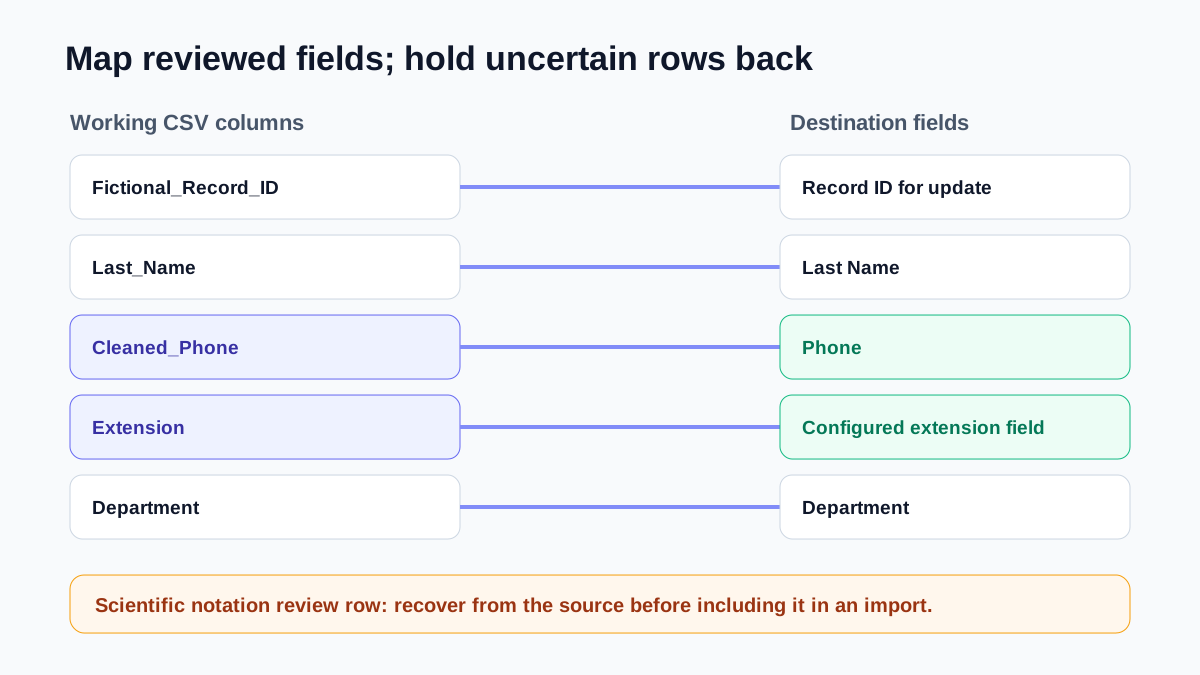
The fictional mapping mirrors the working export: record IDs and non-phone fields remain, while appended cleanup fields are reviewed and mapped deliberately.
Before import
Keep a backup, use UTF-8 CSV, confirm the delimiter, and retain record IDs for updates. The working export appends PrimeDialPRO_Cleaned_Phone, PrimeDialPRO_Extension, PrimeDialPRO_Status, and PrimeDialPRO_Review_Reason.
During and after import
Review every field mapping, test a small batch, inspect import status and error details, and correct the source rather than repeatedly retrying uncertain rows.
Salesforce phone-field preparation examples
The formatter isolates the phone value, preserves review signals, and leaves Salesforce IDs and other import fields in your working source file.
| Input | Result | Meaning |
|---|---|---|
003000000000001AAA, "(646) 555-0148" | +16465550148 | Fictional ID and source row preserved in working CSV |
860.555.0144 ext 105 | +18605550144 · x105 | Base number and extension separated |
7.81555E+09 | Review | Return to the original source value |
+44 20 7946 0958 | Review | Outside the supported +1 NANP scope |
Salesforce phone-number formatting questions
Does PrimeDialPRO import contacts directly into Salesforce?
No. It does not connect to Salesforce or update records. It creates a reviewable working CSV that preserves the supplied source columns and must still be reviewed and mapped through an appropriate Salesforce import workflow.
Which PrimeDialPRO format should I use for Salesforce?
Use the format required by your Salesforce organization and connected systems. +1 E.164-style output is a common interchange choice, but it is not a universal Salesforce requirement.
Can I use the formatter when updating existing Salesforce contacts?
Yes, when the source CSV already contains the identifiers and other fields your update method requires. The working export preserves them, but PrimeDialPRO does not generate missing IDs or determine the correct update mapping.
Does a ready result guarantee that Salesforce will accept the row?
No. Ready means the phone value matched PrimeDialPRO’s supported basic NANP structure. Salesforce permissions, required fields, validation rules, automations, mappings, and other row data can still affect an import.
Policies and references
Related phone converters and workflows
Continue with the next workflow or browse the full directory.