Excel phone data cleanup
How to Format Phone Numbers in Excel Without Scientific Notation
Keep phone-number columns as text, clean up recoverable US and Canada list values, and avoid turning important digits into a spreadsheet guessing game.
- Works with a copied Excel or Google Sheets phone column
- Creates E.164, national, dashed, dotted, compact, or digits-only output
- Flags scientific notation instead of guessing at missing digits
Excel column cleaner
Protect a copied spreadsheet column
Quick answer
Format an Excel phone column without formula gymnastics
Phone numbers are identifiers, so Excel should treat them as text—not values to calculate. Protect the destination column first, run recoverable entries through the formatter, then paste or import the cleaned results back as text.
Best for
Copied phone columns from Excel or Google Sheets that still contain the complete source value.
Output choices
+1 E.164-style, national, dashed, dotted, compact, or 10-digit output for supported NANP-shaped values.
Pause and review
Scientific notation, rounded values, or missing digits need the original export—not a clever formula.
Practical workflow
Format phone numbers in Excel in three careful steps
The key is sequencing: protect the cells, clean the values, and verify a small sample before replacing anything in your workbook.
- 1
Protect the source column
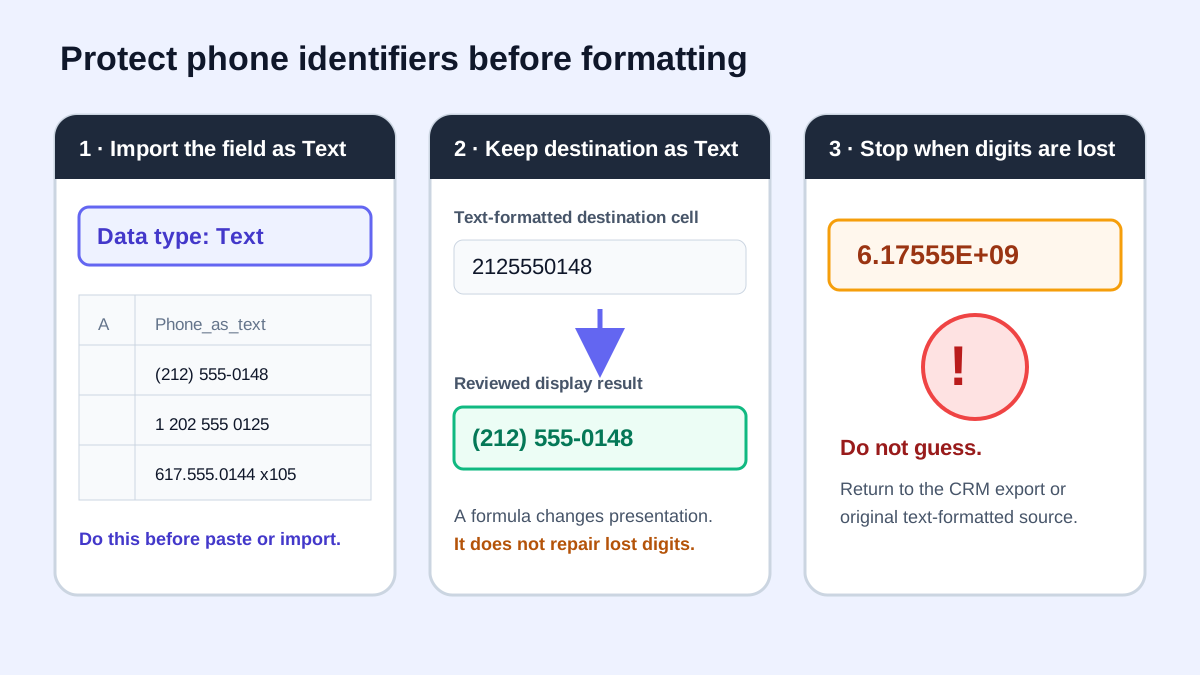
Set the destination cells to Text before pasting or importing phone data. Keep an untouched source column until the cleaned results are verified.
- 2
Paste only the phone values
Copy the phone-number column into the formatter below. Review any entry that does not match a supported 10-digit or +1 NANP structure.
- 3
Choose and export a format
Use +1 E.164-style output for interchange, national format for people, or digits-only output when a destination system requires it.
Why Excel turns phone numbers into scientific notation
Excel is built to calculate numbers, so a long string of digits can be converted, shortened on screen, or shown with an E and an exponent. A leading plus sign may also be interpreted instead of preserved as ordinary text. That behavior makes sense for math, but phone numbers are identifiers—not quantities.
A custom number format changes how a stored value looks; it does not rewrite the underlying value. If Excel already removed a leading zero or rounded digits, switching the cell format cannot reliably reconstruct the original phone number.
- Use Text cells before entering or pasting identifiers.
- Keep the original import available for comparison.
- Treat any rounded or truncated value as source-data loss, not a formatting problem.
Choose the right Excel phone-number format
For values matching the tool’s basic 10-digit or leading-1 NANP structure, PrimeDialPRO can create a consistent +1 E.164-style value such as +14155550199. National format—(415) 555-0199—is easy to scan, while dashed, dotted, compact, and digits-only formats cover common import rules. The formatter does not identify a specific NANP country or territory.
Always confirm the destination system’s documented requirements. Formatting a number does not prove that it is assigned, reachable, mobile, or permitted for a campaign.
Can you fix scientific notation after the fact?
Sometimes—but only when the complete underlying value still exists. PrimeDialPRO flags scientific-notation strings for review because the displayed notation alone cannot prove that every original digit survived. The safe move is to return to the CRM export or source system and import the phone column as text instead of guessing.
- If the full original digits are available, re-import them into a Text column.
- If Excel rounded or removed digits, recover the number from the source system.
- Verify a few beginning, middle, and end rows before using the cleaned column.
| What you see | Safe next step | What not to assume |
|---|---|---|
| Complete digits stored as text | Format or clean a copy. | Display formatting does not validate the number. |
| Scientific display with complete digits still stored | Check the formula bar, then copy into a Text column. | The E notation alone does not prove digits were lost. |
| Rounded value or missing digits | Recover from the original export or source system. | A formula cannot reconstruct unknown digits. |
Practice resource
Practice a text-safe Excel phone workflow
The annotated worksheet shows when to protect a column, when a display formula is safe, and when the only accurate recovery path is the original source file.
Modern Excel display formula
Use only when A2 still contains exactly ten digits. The formula returns Review for any other length; it does not repair rounded values or add a missing leading digit.
=LET(n,A2&"",IF(LEN(n)=10,TEXT(--n,"(000) 000-0000"),"Review"))Older Excel display formula
This older-version option has the same ten-digit limit. Converting with -- is appropriate only after confirming the complete text survived; it cannot restore a lost leading zero or rounded digit.
=IF(LEN(A2&"")=10,TEXT(--(A2&""),"(000) 000-0000"),"Review")Excel phone-number formatting examples
These examples show the difference between a recoverable text value and an entry that needs a trip back to the original data source.
| Input | Result | Meaning |
|---|---|---|
+1 404 555 0136 | +14045550136 | Text-preserved +1 value |
206.555.0184 x32 | +12065550184 · x32 | Extension separated for review |
6.17555E+09 | Review | Return to the original text-formatted source |
Excel phone-number formatting questions
How do I keep the plus sign when I paste phone numbers into Excel?
Format destination cells as Text before pasting. The Excel demo’s copy and CSV actions prefix ready values with an apostrophe as a spreadsheet text marker. Keep a source copy so you can confirm Excel did not reinterpret the values.
Can a custom Excel phone format restore missing digits?
No. A custom format changes display only. It cannot restore leading zeroes or digits that were removed or rounded before the format was applied.
Does PrimeDialPRO validate whether a phone number works?
No. It checks supported NANP length and +1 structure. It does not identify a NANP country or territory, query a carrier, check assignment, determine line type, or test reachability.
Policies and references
Related phone converters and workflows
Continue with the next workflow or browse the full directory.